The best productivity software and apps for work and everyday organisation

What separates genuinely useful productivity software from the rest
Most productivity apps promise the same things: fewer missed deadlines, less inbox chaos, more hours in the day. A small number deliver. The rest add friction you did not have before, or collect digital dust by week three.
The difference is rarely about the feature list. A tool with fifty features you never touch is less useful than one with five you reach for every morning. Before choosing any productivity apps, ask whether they fit the way you already work, or whether they ask you to change your habits to suit them. Apps that require extensive configuration before they deliver anything useful tend to get abandoned quickly.
Good productivity software does three things cleanly. It captures what you need to do, makes it easy to find and prioritise, and lets you close the loop without switching between several different places. Every extra step between a task appearing and you acting on it is a chance for that task to disappear into the noise.
You also need to decide early whether you are choosing for yourself or for a team. Solo tools optimised for personal capture, such as quick-add notes and lightweight lists, fall apart the moment two people need to edit the same workspace. Team tools built around assignments, status updates, and accountability tend to feel heavy and over-engineered for individual use. Getting the right category first, before evaluating specific tools, avoids a lot of wasted time.
If you manage projects alongside tasks, look carefully at how the software handles both. Some apps separate these cleanly, giving you a personal inbox alongside shared project spaces. Others treat everything as one flat list, which works until your task count grows past the point where scrolling becomes the bottleneck. For teams running multiple concurrent projects, the project management tools for teams guide covers the more structured end of that spectrum.
Pricing deserves a clear look before you commit. Many productivity apps offer a generous free tier that works well for individuals but lock team features behind a paid plan. Others reverse this, giving teams solid value while offering very little to solo users. Match the pricing model to your actual situation before you build a workflow around something you may need to pay to keep later.
Integrations are easy to overlook and hard to fix after the fact. A productivity app that sits in isolation creates its own problems, because most work does not happen in one place. Email, calendar, file storage, and communication platforms all feed into how you manage your time and tasks. Software that connects cleanly to what you already use is worth more than software with a longer feature list that operates in a silo. The productivity tools guide covers integration patterns across different work setups.
The learning curve matters too. Some productivity apps have a shallow entry point that most people can work with on day one, then surface more powerful features gradually. Others front-load complexity, requiring you to understand their system before you get anything done. For most people, a tool they use imperfectly is more valuable than a theoretically superior tool they never fully adopt.
The best apps for task management and to-do lists
Task management is where most people start with productivity apps, and it is where the most tools compete for attention. The category is crowded, but the ones that get consistent use share a few traits: fast task capture, clear priority signals, and a view that matches how you think about your work.
ClickUp sits at the more capable end of the spectrum. It handles tasks, subtasks, dependencies, time tracking, and workload views within a single platform. For teams that need clear structure around who owns what and when things are due, it provides enough granularity to run complex work without requiring a separate project management tool. The trade-off is setup time. Out of the box, ClickUp presents more options than most users need, which can slow adoption if you approach it without a clear structure in mind. Start with a simple hierarchy and build out from there.
Trello takes a different approach. Kanban boards, cards, and lists give you a visual picture of where tasks sit at any given point. The interface is fast to learn and fast to use, which makes it popular with smaller teams and individuals who want to see their work without learning a complex system. It is less suited to detailed dependency tracking or multi-project management, but for clear-stage workflows with distinct status columns it works well.
Monday.com sits between those two positions. It offers flexible views including boards, timelines, and calendar formats, with enough structure to support team-level task tracking and enough visual flexibility to stay readable at a glance. It is a solid choice for teams that want a shared picture of tasks and deadlines without committing to a feature-heavy project tool.
Notion approaches task management from a different angle entirely. Rather than providing a built-in task system, it lets you construct one using its database and page structure. That flexibility is useful if you want task management to sit alongside your notes, planning documents, and reference material in one place. The trade-off is that it takes more initial work to build something that functions well as a day-to-day task tool. If you want something that works on day one without configuration, Notion is not the fastest starting point.
Airtable suits teams that think in terms of structured data. You can build task databases, filter views by owner, status, or due date, and link records across tables to create connected pictures of your work. It is less intuitive as a personal to-do tool and more powerful as a system for tracking tasks across a broader workflow or operations process.
One thing to test before committing to any task tool is how it handles recurring tasks and reminders. A tool that forces you to manually recreate standing tasks, or buries reminder settings deep in a menu, creates friction that adds up over time. If you are still deciding what fits, the best productivity apps guide covers individual and team options across a wider range of categories. For a focused comparison of list-based tools, the to-do list tool guide narrows the field.
The best apps for notes, writing, and knowledge capture
Note-taking and knowledge capture often feel secondary compared to task management, but for most people they account for a large portion of working time. Meeting notes, research, decisions, reference material, and half-formed ideas all need somewhere to live. The question is whether that place is searchable, well-organised, and accessible when you need it six weeks later.
Notion handles this category well for most users. Its page and block structure lets you write freely or use structured templates depending on what you are capturing. You can organise notes by project, client, or topic through nested pages, and link between them to build a connected reference system over time. For teams, a shared Notion workspace can function as a living knowledge base, replacing scattered documents and long email threads with something that has genuine structure. The search covers a large amount of content reliably, which matters once you have accumulated months of notes across dozens of pages.
The main limitation of Notion for note-taking is offline performance. If you rely on a mobile connection or regularly work without internet, sync delays can cause problems. The mobile app has improved considerably, but dedicated note apps built specifically for fast capture still outperform it on speed and reliability away from a desk.
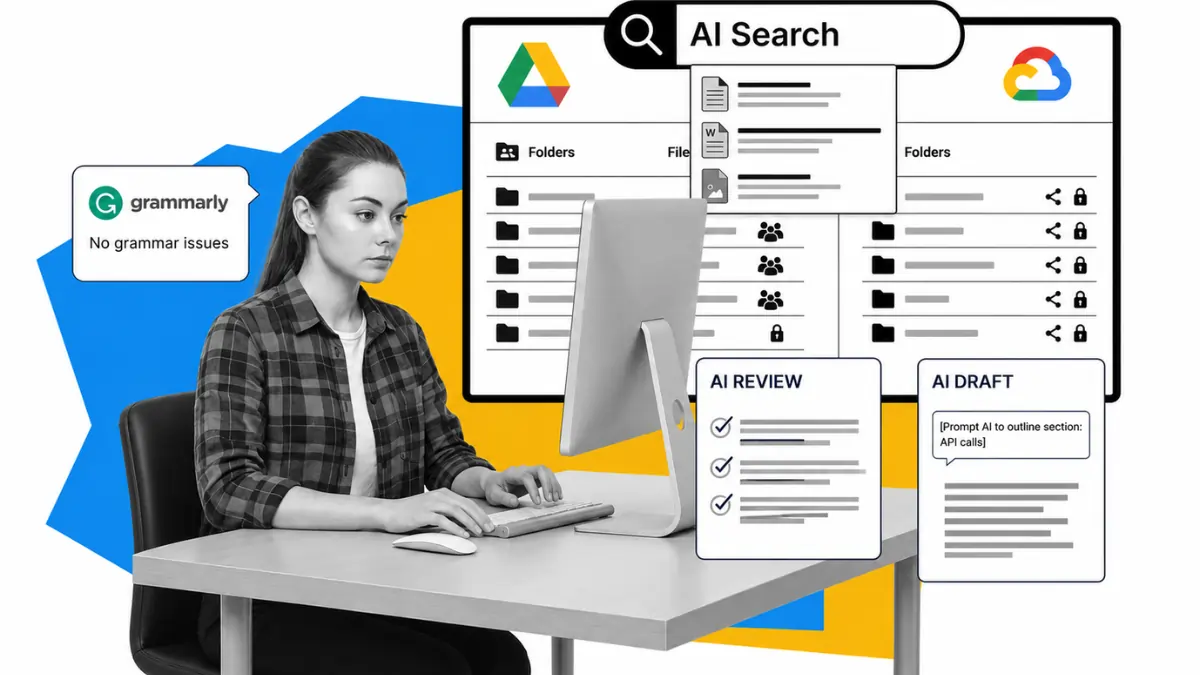
Google Drive is the default for many teams, and it holds its position for good reasons. Google Docs provides a clean writing environment with reliable offline mode and consistent sync. Shared documents work well for meeting notes that multiple people contribute to, collaborative writing, and long-form content that needs version history. The search covers both filenames and document content, which makes the Drive folder system workable as a note repository even without a strict organisation system in place.
The limitation of Drive for note capture is that it is document-centric. Capturing a quick thought or short reference requires opening a new document, naming it, and deciding where to file it. That sequence adds friction during fast-moving situations like calls or live problem-solving.
Dropbox serves a different role in this context. It is a file storage and sync platform rather than a note-taking tool, but its value for knowledge capture is reliability. Files you store in Dropbox are available across devices without formatting problems or sync conflicts. For teams that work with a mix of file types, including PDFs, design files, and written documents alongside notes, Dropbox keeps everything consistently accessible without requiring everything to live inside a single ecosystem.
For a closer look at dedicated note apps, including mobile-first options and tools built specifically for knowledge capture and connected thinking, the note taking apps guide covers a broader range of tools and use cases.
The best apps for time management and scheduling
Time management is where a lot of productivity systems fall apart. You can capture every task correctly and still spend the day reacting rather than doing the work that matters. The apps in this category address the gap between having a list and actually working through it.
The apps most often marketed as productivity tools focus on capture and organisation. Fewer of them address the harder problem of protecting your attention and building a structure that survives real working days. Most of the task tools covered above include time-related features: due dates, time tracking, calendar views, and deadline notifications. Time management as a discipline goes further than those features alone. It involves protecting blocks of focused work, deciding what to deprioritise, and building a daily rhythm that holds up under interruptions.
ClickUp includes time tracking and time estimates at the task level, which lets you build a clearer picture of how long work actually takes compared to how long you expect it to take. That data is useful for planning future workloads and identifying where time gets absorbed. It also has a calendar view that shows tasks alongside their deadlines, giving you a combined picture of what needs to happen and when.
Notion handles time management through its database and template system. You can build a daily planner view that pulls from your task database, add a weekly review template, and structure your days with time blocks inside a page. It requires setup but gives you the flexibility to design a system that matches your working style rather than adopting someone else's structure.
Monday.com provides timeline and calendar views that work well for scheduling work across a team. You can see who has capacity and where deadlines cluster, which helps with planning rather than just tracking. For teams managing multiple deadlines across different projects, that overview of time is more useful than a flat task list.
Trello and Airtable both offer calendar views alongside their standard board and grid interfaces. Trello's calendar option gives you a monthly view of card due dates, useful for deadline awareness. Airtable's calendar view pulls from its database structure and allows filters by owner or project to show only the relevant work.
One tool category not covered in most productivity app roundups is dedicated time-blocking or calendar-based schedulers. These sit alongside your task list rather than replacing it, letting you assign specific tasks to specific hours in your day. Most of the tools listed above do not fully replace this function but integrate with calendar apps that do. For a closer look at how time and task tools work together in practice, the time and task management guide covers the combination in more detail. For teams that need structured dashboard views of workload and deadlines, the task management dashboard guide is worth reading alongside this one.
The best productivity tools for teams and collaboration
Individual productivity tools and team productivity tools overlap more than most comparisons suggest, but there are genuine differences in what each prioritises. Solo tools optimise for speed and personal clarity. Team tools add visibility, accountability, and shared context to the mix.
ClickUp handles team productivity at a level of detail that most teams will not fully use but will appreciate having available. Task ownership, comment threads, status updates, and workload views give managers and team members a shared picture of what is happening without requiring daily status meetings. The notification system can become noisy if not configured carefully, but the underlying structure for team work is solid.
Monday.com is built around the idea that a team's work should be visible at a glance. Its board and timeline views show progress across multiple workstreams simultaneously, which helps with coordination across teams that have overlapping dependencies. The interface is approachable for people who are not particularly technical, which speeds up adoption considerably.
Notion works well for teams as a shared knowledge and documentation layer. Rather than replacing a task tool, it tends to complement one: team wikis, project documentation, onboarding materials, and process notes live in Notion while active task management happens elsewhere. Some teams use it for both, building custom databases that serve as lightweight project trackers alongside their documentation.
Google Drive underpins collaboration for a significant number of teams regardless of what other tools they use. Shared documents, spreadsheets, and presentations with real-time editing and comment threads handle a wide range of collaborative work. Its strength is familiarity: most people know how to use it immediately, which removes the adoption problem entirely.
Airtable suits teams that want to build shared databases around their work. Content calendars, project registers, client trackers, and asset libraries all benefit from Airtable's grid and gallery views. The ability to share filtered views with external stakeholders is useful for agencies and teams that report to clients.
Dropbox keeps files accessible and consistent across a team without the version control issues that come from emailing attachments. For teams that work with large files or a range of file types, it removes a category of friction that slows down collaboration. Shared workspaces also create a secondary benefit that individual tools do not: when task status, documents, and context all live in one visible place, the number of alignment conversations needed decreases.
For a broader look at tools specifically designed for distributed and in-office team collaboration, the team collaboration tools guide goes into more depth. If you are thinking about AI-powered tools that sit alongside your productivity stack, the AI tools for business guide is worth reading next.
Free productivity software worth using first
Free productivity software has improved to the point where, for many individuals and small teams, a paid plan is not necessary to get genuine value. The tools worth starting with on a free plan are those that do not artificially restrict the features you need day-to-day and only charge for scaling or advanced team functionality.
Notion offers a free plan that covers most of what individuals need: unlimited pages, basic database functionality, and the ability to share a limited number of pages with collaborators. The free tier is meaningful rather than a stripped-down trial. You can build a substantial personal productivity system without spending anything. Paid plans become relevant when you need advanced permission controls, unlimited history, or larger team workspaces.
Trello has a free tier that covers unlimited cards across ten boards, with access to the core kanban functionality that makes it useful. For individuals and small teams managing a single project at a time, this is often enough. Paid plans unlock additional views, power-ups, and automation rules that become more valuable as workflow complexity grows.
Google Drive provides fifteen gigabytes of free storage alongside Google Docs, Sheets, and Slides with no meaningful feature restrictions on the free plan. For document collaboration and file storage, this is one of the strongest free productivity offers available. The main reasons to upgrade to Google Workspace are additional storage, custom email domains, and admin controls for larger teams.
Airtable offers a free plan that supports unlimited bases with a cap on records per base and limited history. For teams building lightweight databases and trackers, this is a reasonable starting point. The restrictions become noticeable when managing large datasets or when longer history is needed for auditing purposes.
Dropbox provides a free tier with a storage cap that suits lighter individual use. Sync reliability and device access work the same as on paid plans, which makes it worth using even at the free level for straightforward file access across devices.
The area where free productivity tools tend to have the most restrictions is automation. Most tools limit the number of automated actions or recurring workflows available on free plans. If automation is central to how you work, understand those limits before you build processes that depend on them. The workflow automation guide covers tools specifically built for connecting and automating across your productivity stack. If you are thinking about how your productivity tools connect to lead management, contact tracking, or client work, the lead generation and CRM tools guide covers where those categories intersect.
What this means for you
Choosing productivity software is not a one-time decision. The tool that fits how you work today may not suit a team of five in a year, or a different workflow six months from now. The most useful thing you can do is pick something appropriate to your current situation, use it consistently enough to give it a fair trial, and adjust when your needs shift.
The most common mistake is choosing a tool based on its full feature list rather than its day-one usefulness. A long list of features is only valuable when you will actually use those features. Most people use a small fraction of what any productivity app offers. Choosing the option with the most capabilities, or the one with the most prominent marketing, often results in a product that sits partly unused while the features you need remain buried under settings you never configured.
A more reliable approach is to identify the one or two friction points that cost you the most time in a typical week. If tasks are slipping through conversations and emails, a task capture tool solves that. If notes live across five different places and you can never find what you wrote, a single unified system solves that. If your team operates without a shared view of who owns what, a workspace with clear assignment and status tracking solves that. Match the tool to the problem, rather than adopting a solution and then searching for problems it might address.
Once you have chosen something, how you configure it in the first week matters more than most people expect. A productivity app set up poorly functions worse than a simpler system set up well. Spend the first week building the structure you will actually use: your folder hierarchy, your project categories, your task views, your naming conventions. The decisions you make during setup tend to persist. Poor early decisions create confusion that compounds over months.
Resist the pull toward constant tool-switching. Productivity app adoption follows a recognisable pattern: you start something new, feel a surge of organised energy during setup, use it consistently for a few weeks, and then drift back toward old habits when the novelty fades. The energy of migration does not reliably translate into sustained behaviour change. If you find yourself switching tools every few months and attributing the failure to the tool, the problem is more likely the system around the tool. No app will make an unclear workflow clear. The structure has to come first.
If you work alone, start with the simplest option that addresses your primary problem. Notion or Trello are both accessible enough to use on day one without a lengthy configuration phase. If you need more capability later, you can migrate your content. If you work in a team, involve the people who will use the tool before you commit. A tool that three people adopt completely and use every day is worth more than one that eight people use reluctantly or inconsistently. Adoption rate determines whether you get any return on the time spent setting up.
The free versus paid question deserves a direct answer. Free plans across the tools in this guide are genuinely functional, not trial versions designed to force an upgrade. You can build a solid personal productivity system using Notion, Trello, or Google Drive at no cost. The reasons to upgrade are specific: you need more automation runs, additional storage, advanced permission controls, or features that support a larger team. If you cannot name a specific paid feature that solves a problem you have right now, stay on the free plan until you can.
For teams that also manage projects with deliverables, deadlines, and multiple contributors working in parallel, a dedicated project management tool for teams may serve you better than a general productivity app. The distinction matters because project management tools are designed around delivery: timelines, milestones, resource allocation, and progress reporting. Productivity apps are designed around organisation and personal or team efficiency. Both are useful, and they answer different questions. Understanding which you need prevents you from asking a productivity tool to do project management work it was not built for.
The way most effective teams use these tools in practice is layered. A shared documentation layer, such as Notion or Google Drive, holds reference material, process notes, and institutional knowledge. A task and project layer, such as ClickUp or Monday.com, handles assignments, deadlines, and progress tracking. A file storage layer, such as Dropbox or Google Drive, holds assets and deliverables. These layers do not need to be three separate products. Several tools in this guide cover more than one function. The point is to know which part of your stack is responsible for each function, so that work does not fall through the gaps between tools, and so that people know where to look for what they need.
Review your tool stack at regular intervals. Apps update their pricing, change their feature sets, and sometimes decline in quality without announcement. A tool that was the right choice eighteen months ago may no longer be. More commonly, your team has grown or your work has evolved in ways that call for a different configuration. A short quarterly or biannual review, where you assess what you are actually using and what you are paying for, tends to surface changes worth making before they become problems.
One area that often gets skipped is how a new team member experiences the tools you have chosen. A productivity stack that a founder built over months can be impenetrable to someone joining for the first time. Onboarding documentation matters: a short guide explaining what each tool is used for, what goes where, and how to find things helps new people become useful faster and reduces the questions your existing team has to answer repeatedly. Notion works well for this because you can maintain an onboarding wiki alongside your working content.
Measuring whether your productivity tools are actually working is harder than measuring whether you are using them. Usage is not the same as impact. You can open an app every day and still be just as disorganised as before. A cleaner measure is whether tasks get completed by the people responsible for them, whether important information is findable when needed, and whether the overhead of maintaining your system feels proportionate to the benefit. If the system requires more effort to maintain than it saves, that is a signal to simplify.
Consolidation is worth considering once you have used a stack for a while. Many teams accumulate tools gradually: one for tasks, one for notes, one for files, one for communication, one for time tracking. Each made sense when added. Together they create a fragmented experience where context is split across too many places. Asking periodically whether two tools could be replaced by one without losing important capability keeps the stack manageable.
Notifications and interruptions are a feature of every productivity app that most setups handle poorly. Default notification settings across ClickUp, Monday.com, and Notion are designed for maximum visibility, not minimum interruption. Every comment, status change, and assignment triggers an alert. Most people find this overwhelming and either turn off all notifications or stop checking them. A better approach is to configure notifications by type from the start: direct assignments and mentions on, general status updates off. The time spent adjusting notification settings pays back immediately in reduced distraction.
Mobile access deserves more weight than it usually gets in software comparisons. If part of your work happens away from a desk, the mobile experience of your productivity tools determines how much of that time remains useful. Google Drive, Notion, Trello, and ClickUp all have mobile apps that work well for most tasks. Offline access quality varies more significantly. If you regularly work in environments with unreliable internet, test offline functionality before committing.
Finally, give any tool at least four to six weeks before deciding it is not working. Most productivity apps take time to show their value because their value comes from accumulated content and consistent habits, not from the software itself. A note app with three weeks of notes is less useful than one with six months. A task system used consistently for a month starts to surface patterns and priorities that a short trial never reveals. The fair test of any productivity tool is extended, consistent use under real working conditions, not a trial during a quiet week.
More AI & Tech Blogs




Latest AI & Tech Blogs


Subscribe to Stay in the loop
Get the latest AI and technology news, honest tool reviews, and practical guides delivered straight to your inbox.
Success! Check your Inbox!
Tezons Newsletter
The latest technology news, in-depth tool reviews, and practical guides - curated and delivered to your inbox.
Latest News



Have a question?
Have any questions?
Didn’t find what you were looking for? We’re just a message away.