How to use Claude AI: a beginner's guide


Claude is an AI assistant that can write, reason, summarise, analyse, and code, and most people who try it never get close to using it properly. The gap between typing a vague question and knowing how to have a structured, productive conversation with Claude is where most beginners stall. This guide closes that gap.
You do not need a technical background to get good results from Claude. You need to understand how the tool thinks, what it responds well to, and a few principles that change everything about how you interact with it. Those are what this guide covers, from signing up to the techniques most users never discover.
What Claude is and what it is actually good at
Claude is a large language model, which means it is a type of AI trained on vast amounts of text to understand and generate language. In practical terms, you type something, and Claude responds. The difference between Claude and a basic search engine is that Claude does not retrieve information, it constructs a response. It reasons through what you asked, draws on patterns it learned during training, and produces text designed to answer your specific question.
Where Claude performs particularly well is in tasks that require extended reasoning across a long piece of content. It can hold more text in a single conversation than most AI tools, which means you can paste in a 40-page report, ask it to find inconsistencies, and get a structured response across the whole document, not just a summary of the first few pages. That context window, the amount of text Claude can process at once, is one of its most underused advantages.
The tool also writes with noticeably more nuance than many AI alternatives. It handles tone well, adapts to different registers, and tends to avoid the flat corporate language that makes AI writing obvious. For anyone using an AI assistant regularly for writing tasks, that difference matters quickly.
What Claude is not
Claude does not browse the internet in its standard mode. Its knowledge comes from training data with a fixed cutoff, so it cannot tell you what happened yesterday or pull live prices from a website. It can also hallucinate, producing confident, well-structured answers that are factually wrong. This is not a bug unique to Claude; it is a property of large language models generally. The practical implication is that you treat Claude's outputs the way you would treat a very well-read colleague: useful as a starting point, worth verifying on anything consequential.
Creating your Claude account
Go to claude.ai and sign up with an email address or Google account. The process takes under two minutes. Once you are in, you land on the main chat interface, which is where you will spend most of your time.
Claude offers a free tier with usage limits and a paid plan called Claude Pro, which raises those limits and gives access to more capable models. For most beginners, the free tier is enough to get started and to decide whether the tool is worth paying for. There is also a Team plan for organisations sharing access across multiple users, and an Enterprise option for larger deployments.
One thing worth knowing before you start: Claude's interface is ad-free. There are no promoted results, no sponsored answers, no advertiser influence on what Claude says. The response you get is based on your prompt, not on what a third party paid to show you.
Understanding the Claude interface
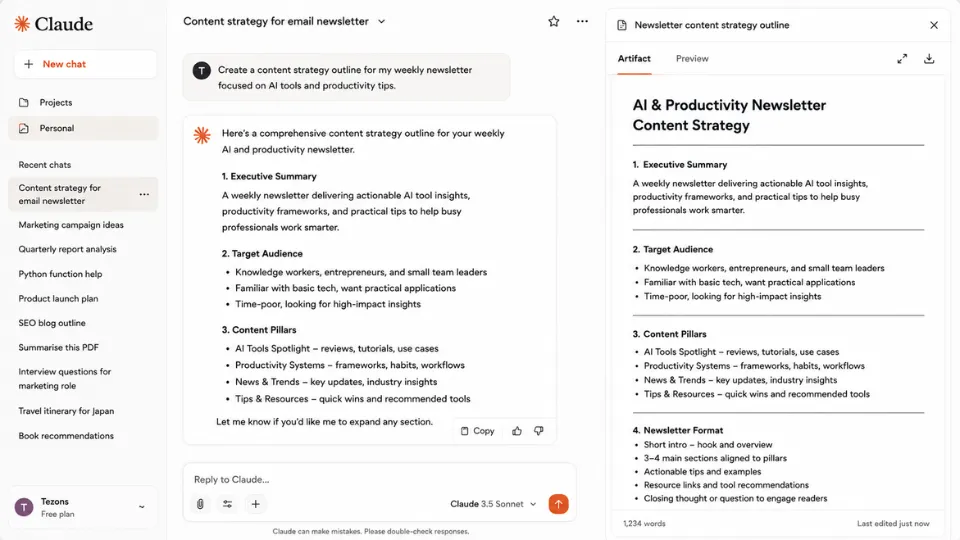
The interface is simpler than it looks. On the left is the sidebar, which shows your conversation history. Each conversation is listed there and reopens exactly where you left it. Conversations do not share memory by default, so what you told Claude in one chat stays in that chat unless you carry it across manually or use Projects.
Projects are folders that let you group related conversations and attach shared context, such as instructions, background information, or files, that Claude applies to every conversation inside that Project. If you are working on an ongoing task, a client brief, or a research topic that spans multiple sessions, Projects keep everything in one place and save you repeating context every time you start a new chat.
The prompt box is at the bottom of the screen. You type here, attach files using the paperclip icon, and send with Enter or the arrow button. The settings panel, accessible from the top right, covers things like notification preferences and account details.
Artifacts appear on the right side of the screen when Claude produces a self-contained output, such as a block of code, an HTML page, a formatted document, or an interactive tool. Rather than appearing as part of the conversation text, the Artifact opens in its own panel where you can view, copy, or download it. This matters for longer outputs because it keeps the conversation readable while the deliverable sits cleanly in its own space.
How to write a prompt that gets useful results
The single biggest factor in the quality of Claude's output is the quality of your prompt. Most beginners type something vague, get a vague answer, and conclude the tool is not that useful. The tool is not the problem.
Here is the difference in practice. A weak prompt gives Claude almost no information to work with. A strong prompt tells Claude what you need, who it is for, what constraints apply, and what format the output should take.
Compare these three versions:
- Weak: Write me an email about a delayed project.
- Better: Write a professional email to a client explaining that a software project is delayed by two weeks due to a dependency issue we did not anticipate. Keep it under 150 words.
- Strong: You are a project manager at a software consultancy. Write a professional email to an enterprise client explaining that a software project is delayed by two weeks. The cause is an unexpected third-party API dependency we discovered during integration. The tone should be direct and apologetic without being defensive. Keep it under 150 words and end with a proposed call to discuss next steps.
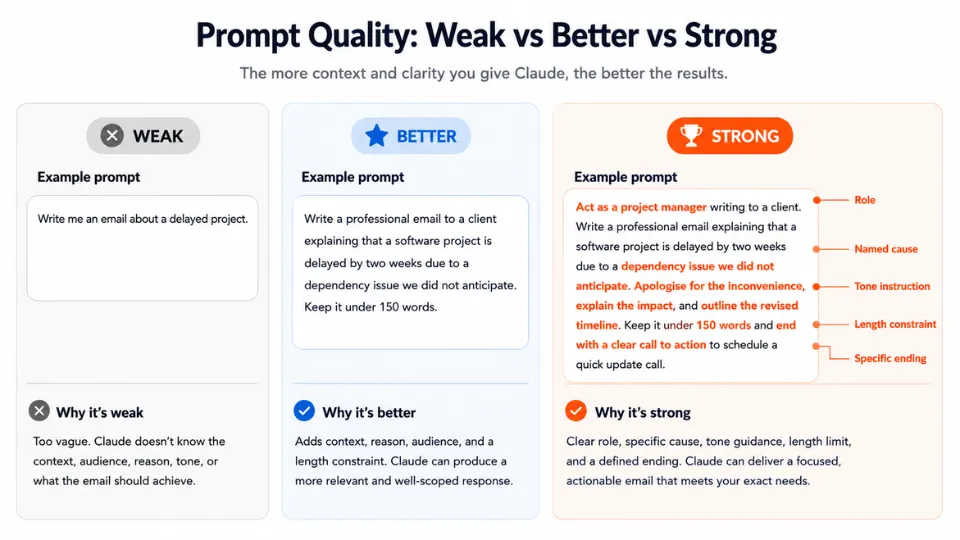
The strong version gives Claude a role, a situation, a named cause, a tone requirement, a length constraint, and a specific ending. Claude can fulfil all of that precisely. The weak version forces Claude to guess at everything, and its guesses may not match what you actually needed.
Role prompting
Telling Claude to approach a task from a specific perspective changes the output substantially. "You are an experienced copywriter reviewing this landing page for clarity" produces different feedback than "review this landing page." The role primes Claude to apply a particular kind of expertise and filter its response accordingly.
Iterative prompting
Claude is not a one-shot tool. The best workflows treat a conversation as a series of refinements rather than a single request. Ask for a first draft, then follow up: "Make the second paragraph shorter and more direct." "Change the tone to suit a non-technical audience." "Add a section on pricing." Each follow-up narrows the output toward what you actually want, and you can keep going until it is right.
Using Projects effectively
A Project is worth setting up any time you return to the same topic across multiple sessions. The most useful thing you can do inside a Project is write a set of instructions in the Project settings. Claude reads these at the start of every conversation in that Project, so you do not need to repeat your preferences, your style guide, or your context each time.
For example, if you manage social media content, you could create a Project called "Social content" and add instructions telling Claude the brand voice, the character limits for each platform, and the topics to avoid. Every conversation you open in that Project starts with Claude already knowing all of that.
Projects also accept file uploads at the Project level, not just the conversation level. A research report, a product specification, or a company style guide uploaded to a Project is available to every conversation inside it. This is the closest Claude gets to a persistent memory of your working context.
Uploading files and what Claude can do with them
Claude accepts PDFs, Word documents, spreadsheets, images, code files, and plain text. You attach files directly in the prompt box using the paperclip icon. Once a file is in the conversation, Claude can read it, summarise it, extract specific information from it, compare it to another document, or rewrite sections of it based on your instructions.
Some of the most useful file workflows are also the least obvious. You can paste in a contract and ask Claude to flag any clauses that differ from standard terms. You can upload a spreadsheet and ask it to explain what the data shows without writing a single formula. You can give Claude a competitor's product page and ask it to identify the positioning strategy. None of these require any technical skill, just a clear instruction attached to the right file.
The context window advantage matters most here. Unlike tools that read only the first portion of a long document, Claude processes the full file when it fits within its context limit. For most standard business documents, reports, and research papers, it fits.
Practical workflows to try first
Rather than experimenting blindly, these are the workflows where beginners consistently get strong results quickly:
- Summarising a long document: upload the PDF or paste the text and ask Claude to pull out the five most important points, the key decisions made, and any open questions. Adjust the structure to match what you need.
- Drafting and improving emails: paste a draft you have written and ask Claude to make it clearer, shorter, or more direct. Or describe the situation and ask for a first draft you then refine.
- Explaining a difficult concept: paste a dense paragraph from a report, academic paper, or technical document and ask Claude to explain it in plain language. Follow up with "give me a concrete example" if the explanation is still abstract.
- Planning a project: describe what you need to achieve and ask Claude to produce a phased plan with realistic tasks. Then push back on anything that does not fit your constraints.
- Writing and debugging code: paste a block of code and describe the problem. Claude works across most common languages and explains what is wrong and why, not just what to change. For coding-specific use, Cursor integrates an AI assistant directly inside an IDE, which suits developers working on larger codebases.
Comparing Claude to ChatGPT
The two most-used AI assistants cover similar ground but have real differences worth knowing. ChatGPT has broader plugin and tool integrations and supports image generation through DALL-E. Claude tends to perform better on long-document analysis and produces writing that reads more naturally across most registers. For research tasks involving real-time web data, tools like Perplexity AI are purpose-built in a way neither Claude nor ChatGPT is by default.
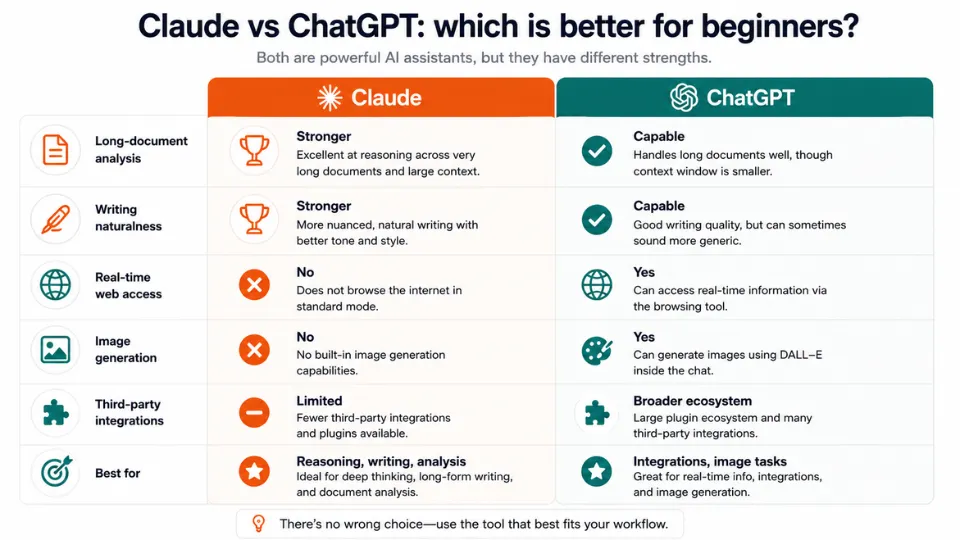
The most honest answer is that the right tool depends on the task. Claude is the better default for anything requiring careful reasoning over a long document, nuanced writing, or a sustained multi-turn conversation. ChatGPT's ecosystem of integrations pulls ahead if you need the tool to connect to other services directly.
Mistakes most beginners make
- Being too vague: a prompt with no context, no constraints, and no defined output produces a generic answer. Add specifics before you send.
- Starting a new chat for every question: Claude's reasoning improves within a conversation as it builds understanding of your situation. Starting fresh for every question throws away that built context.
- Treating the first output as final: almost no first draft is the finished version. Use follow-up prompts to refine, cut, restructure, or shift tone.
- Not checking facts: Claude presents incorrect information with the same confidence as correct information. On anything factual, verify independently before using.
- Ignoring Projects: most casual users never set up a Project. The time saved across a week of repeated sessions more than covers the five minutes it takes to configure one.
- Pasting only part of a document: if you have a long file, upload it rather than copying excerpts. Claude reads the whole thing; fragmented pastes mean fragmented analysis.
Getting more from Claude over time
The users who get the most from Claude treat it less like a search engine and more like a thinking partner. They share context about what they are trying to achieve, not just what they want Claude to produce. They push back on answers that are not quite right rather than accepting them. They use Notion or a similar tool alongside Claude to store outputs worth keeping, since Claude's conversation history is not a long-term archive.
For writing tasks specifically, pairing Claude with a dedicated grammar and style checker like Grammarly covers the gaps each tool has. For research that requires real-time source verification, NotebookLM is worth exploring alongside Claude, as it grounds responses in the specific documents you upload rather than its training data. If your work involves automating tasks between apps, Zapier has native Claude integrations that let you trigger AI responses inside existing workflows without writing code.
The prompt is where every interaction starts, and the skill of writing good prompts compounds quickly. A clearer, more specific prompt today produces a better output tomorrow and the day after. That skill transfers across every AI tool you use, making it one of the more durable things to develop.
More AI & Tech Blogs





Latest AI & Tech Blogs


Subscribe to Stay in the loop
Get the latest AI and technology news, honest tool reviews, and practical guides delivered straight to your inbox.
Success! Check your Inbox!

Tezons Newsletter
The latest technology news, in-depth tool reviews, and practical guides - curated and delivered to your inbox.
Latest News




Have a question?
Have any questions?
Didn’t find what you were looking for? We’re just a message away.